App Icon

ByteStudio Remote Desktop for Meta Quest 3

Control your Ubuntu desktop from VR with H.264 acceleration

Download the APK to sideload on your Quest 3 using adb install.
Follow the setup steps below to configure your PC.

🚀 Installation & Setup

  1. Download the APK
    Get the app-release.apk from the link above.
  2. Sideload the APK to your Quest 3
    On the Quest, enable Developer Mode (Settings → System → Developer Mode) and Unknown Sources.
    • Via the Quest browser: download the APK and click the file to install.
    • Via ADB (PC): open a terminal and run adb install app-release.apk.
  3. Install the GNOME Remote Desktop service (optional)
    If the Remote Desktop feature is not already enabled on your Ubuntu system, open a terminal and run:
    sudo apt update
    sudo apt install -y gnome-remote-desktop
    If Remote Desktop is already active, you can skip this step.
  4. Enable GNOME Remote Desktop
    Go to Settings → Sharing → Remote Desktop and toggle it on.
  5. Create a Remote Desktop user and password
  6. Connect from Quest
    Open the app on your Quest 3 and enter:
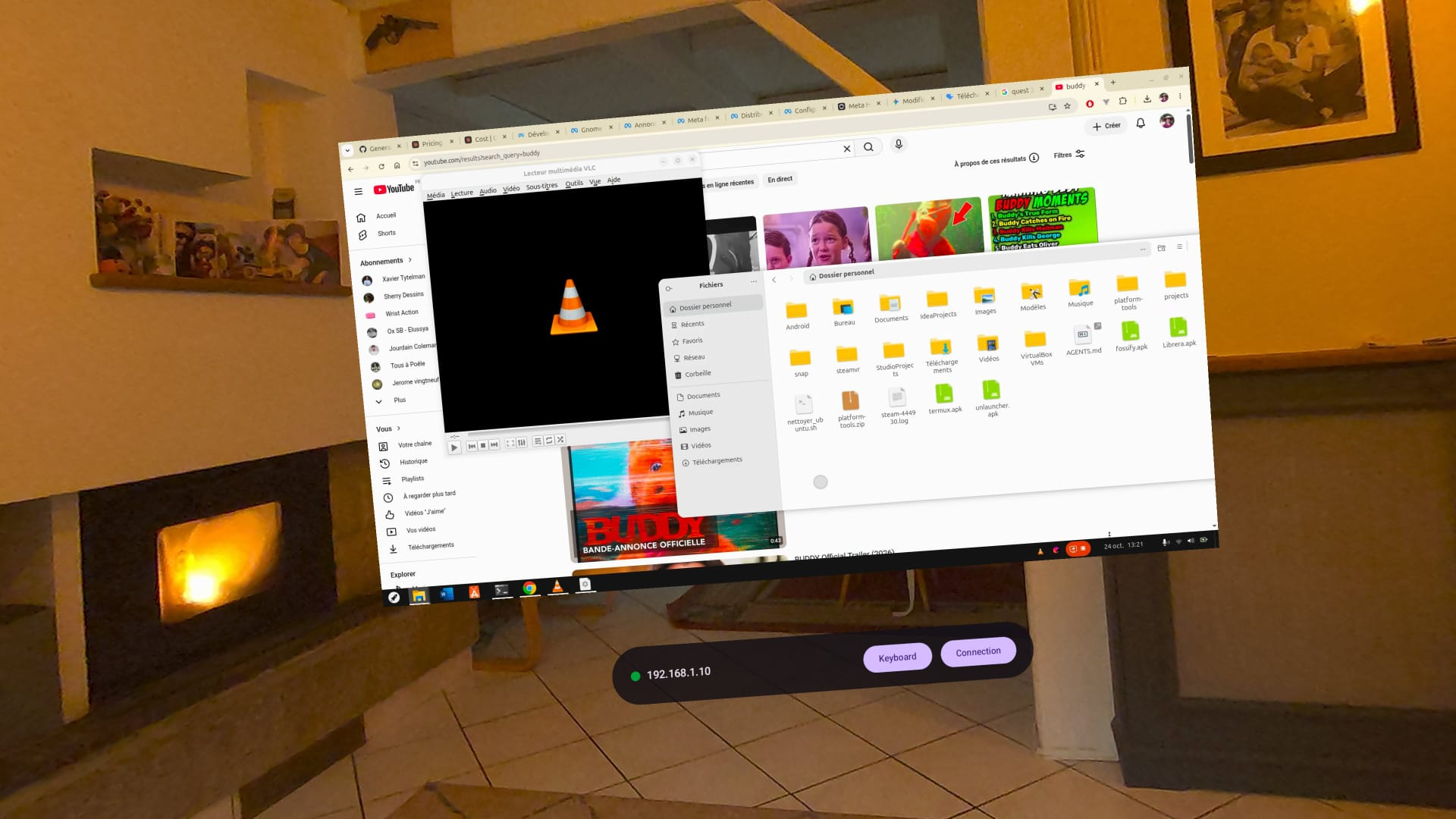
    • IP address: your Ubuntu PC's local IP (e.g. 192.168.1.10)
    • Username: your R.D. user (e.g. vruser)
    • Password: your R.D. password (e.g. vruser)
    Then tap Connect.

✨ Features

🎮

High Performance

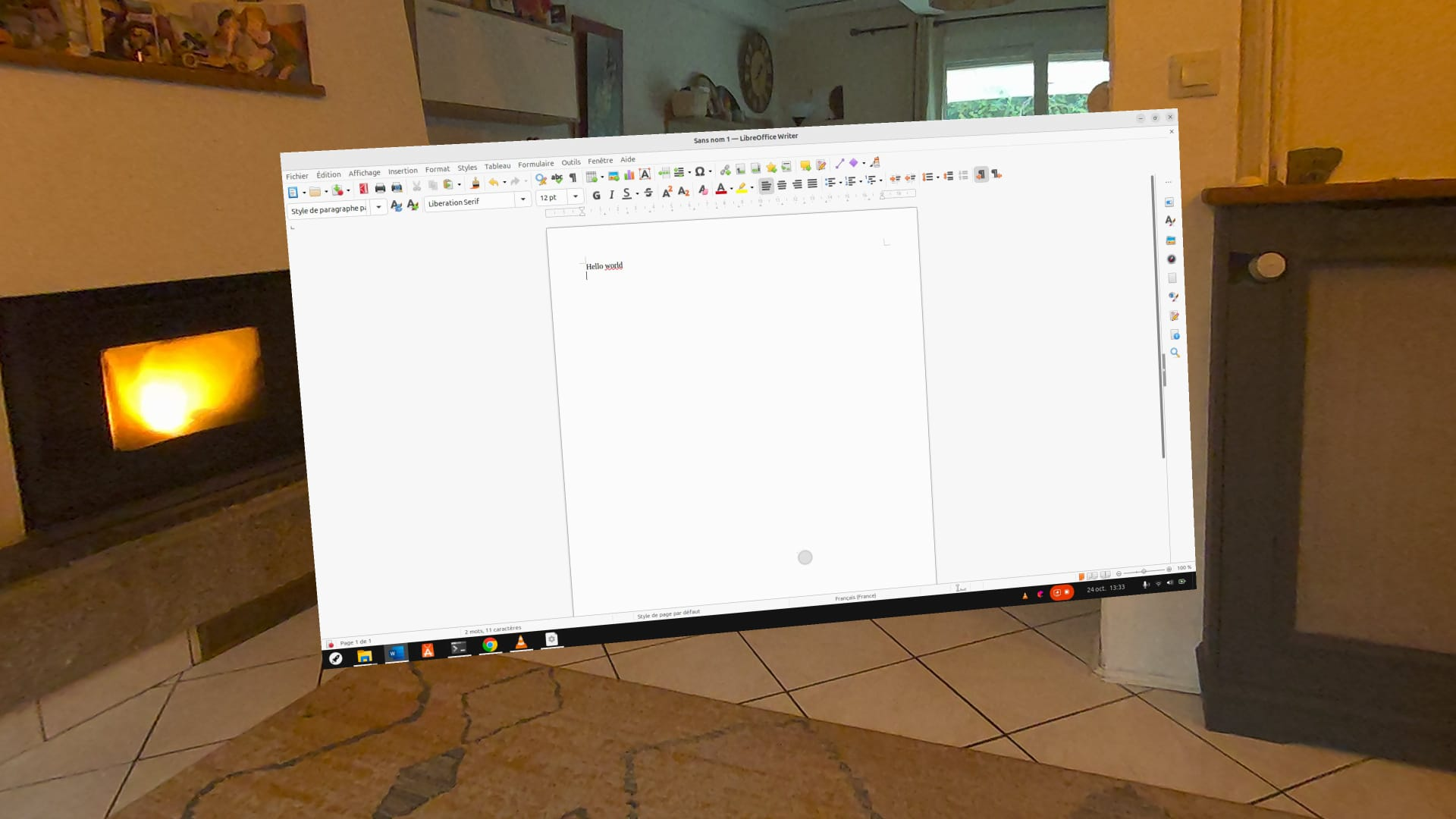
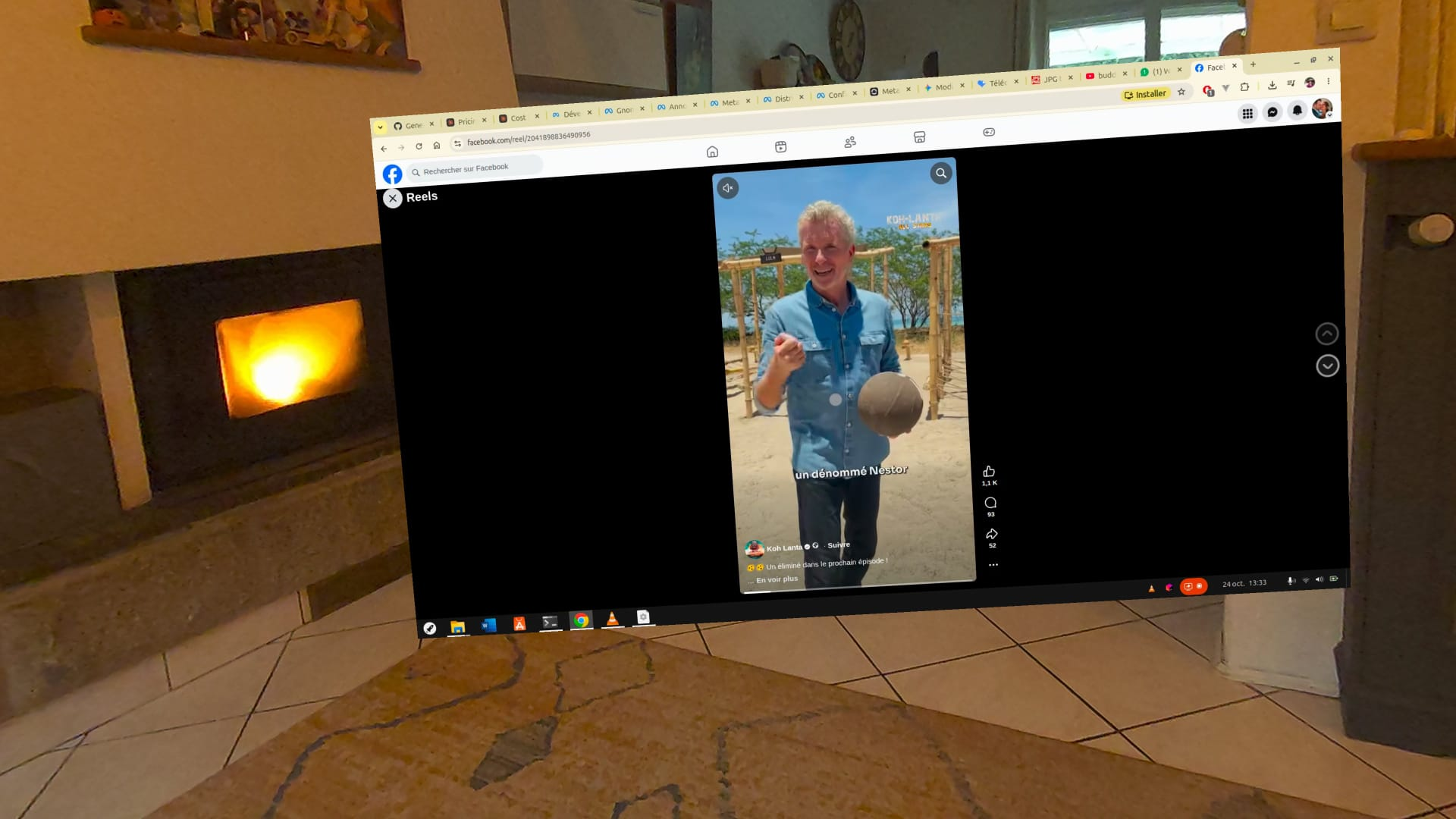
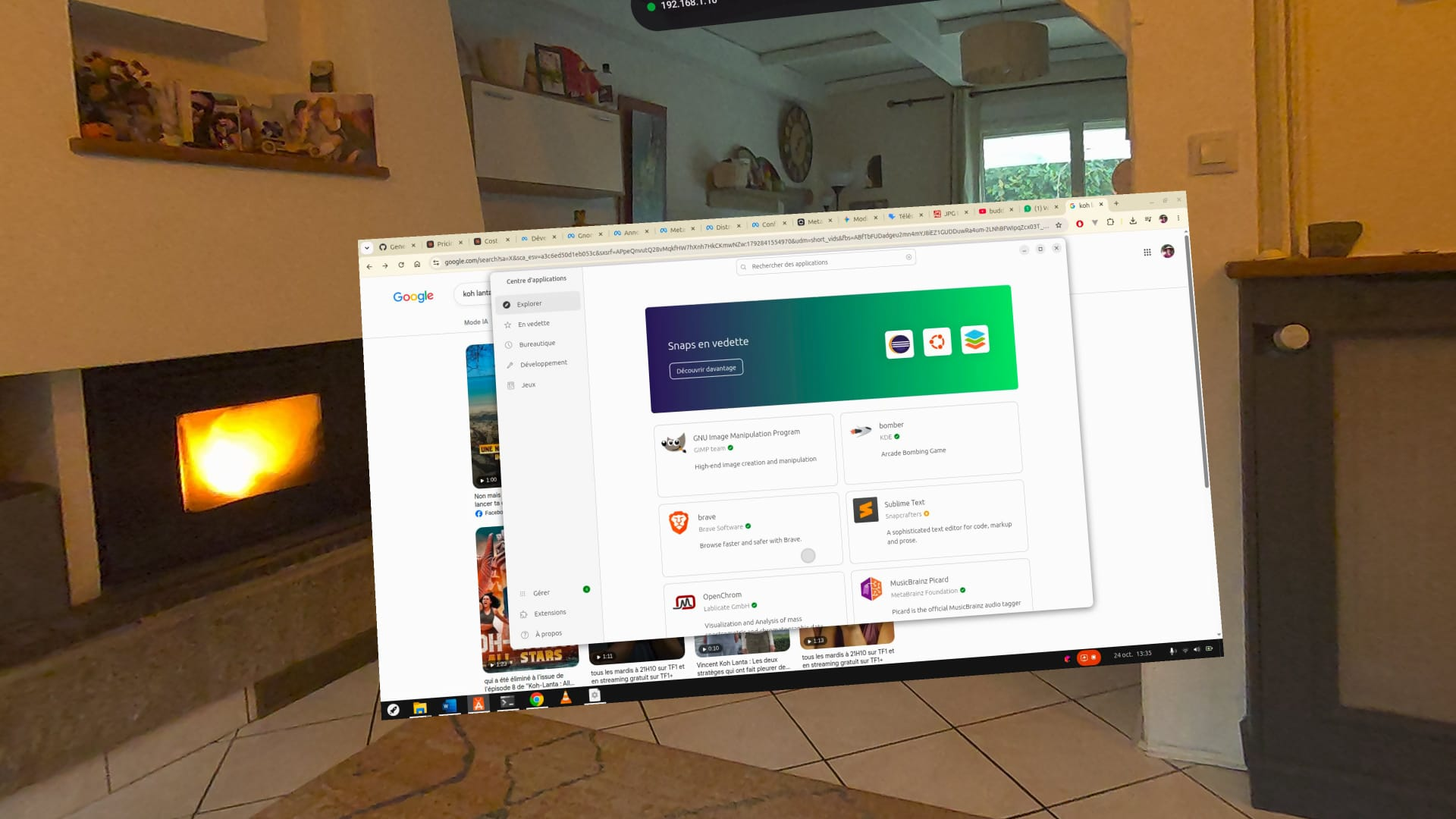
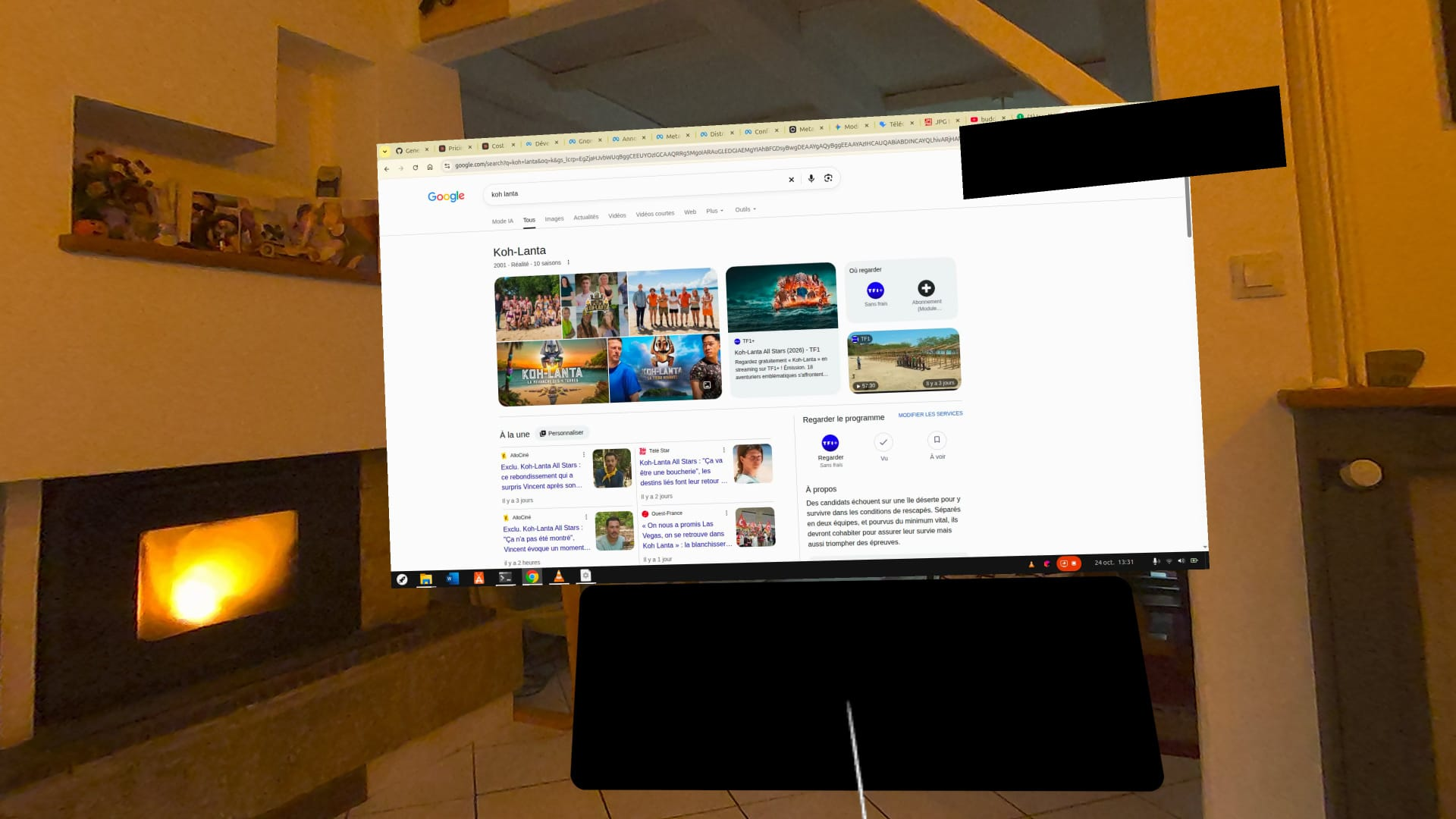
1920×1080 display on a 2-meter floating panel with H.264 HW acceleration via Qualcomm decoder

👁️

Mixed Reality

Passthrough enabled - see your hands, keyboard, and environment around the desktop

⌨️

Multiple Input Options

Bluetooth keyboard, virtual keyboard with accents, hand & controller pointing

🔧

Stabilized Pointer

Advanced filtering and dual-hand conflict resolution for comfortable precision control

🎨

Flexible Layout

Draggable and resizable panels with persistent positioning

🔒

Secure Connection

RDP with NLA/TLS + certificate pinning (TOFU like SSH)

🔊

Audio Playback

Full audio support from your remote PC with PCM playback and low latency buffering

🎬 Screenshots

See the app in action on Meta Quest 3:
📋 Requirements & Limitations

Hardware Requirements

  • Meta Quest 3
  • Ubuntu PC with GNOME (tested: Ubuntu 26.04)
  • Local network connection (Ethernet + Wi-Fi 5/6 GHz recommended)

Known Limitations

  • GNOME desktop only (not KDE, XFCE, etc.)
  • Single display support
  • 30 fps max (server limit)
  • No clipboard or file sharing